Installing YMH STAMP on Windows
Step-by-step guide to install YMH STAMP, including the warnings Windows shows for a recent publisher.
Compatible with Windows 7 SP1 to Windows 11 (64-bit) · installer ≈ 205 MB · v1.0.3
Why Windows shows a warning
YMH STAMP is recent software whose publisher has not yet established its reputation with Microsoft. For this kind of program, Windows shows a security warning while that reputation builds up. It is a normal precaution, not a sign of a problem.
Always download the installer from our official site ymhstamp.com, never from another link. You can verify that the file you received is intact using its fingerprint published below.
Download the installer
Click “Download the installer” (the button at the bottom of this page). The file “YmhStamp-Setup.exe”, about 205 MB, downloads: this size is normal for this application.
Your browser may flag the file as “uncommon”: this is the same reason as above (a recent publisher, not yet recognised), not a problem. In Microsoft Edge, open the “…” menu next to the download, then choose “Keep”. Other browsers offer an equivalent confirmation.
Windows 10 and Windows 11
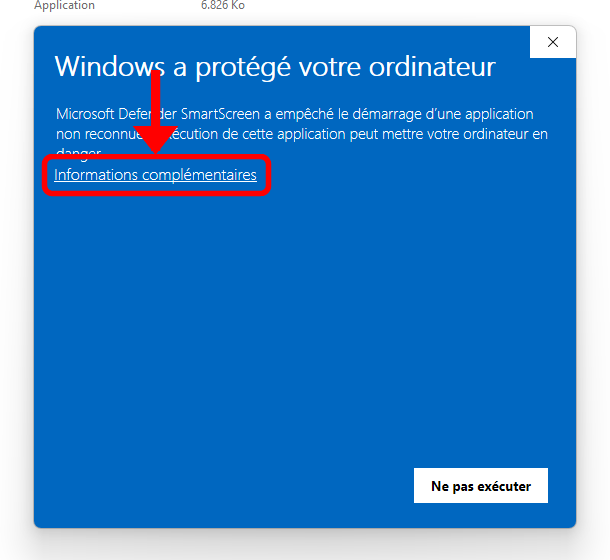
After launching the installer, Windows may show “Windows protected your PC”. Click “More info”.
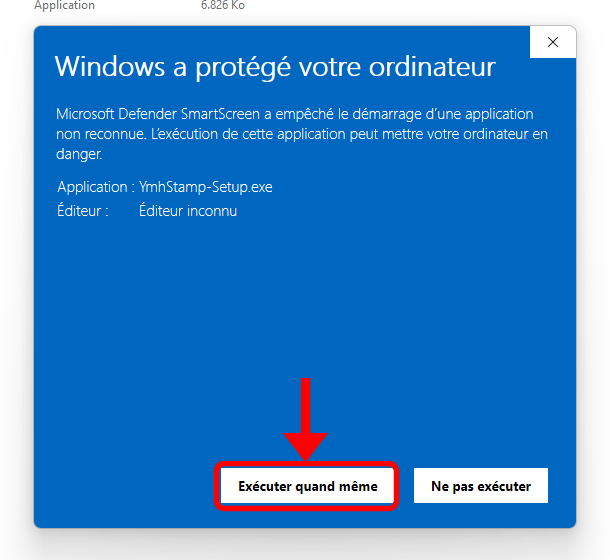
The details appear: check that it is indeed “YmhStamp-Setup.exe”, then click “Run anyway”.
The YMH STAMP installer window opens. Click “Install”: the shield on this button means Windows will ask for your permission right after.
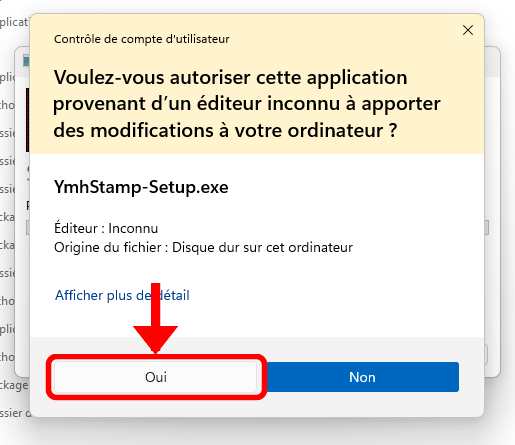
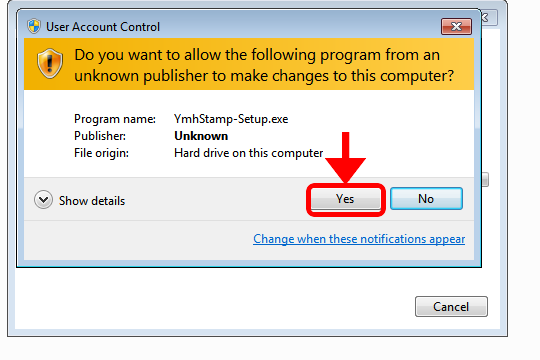
Windows asks for permission to install (User Account Control, unverified publisher). Click “Yes” to continue.
Windows 7
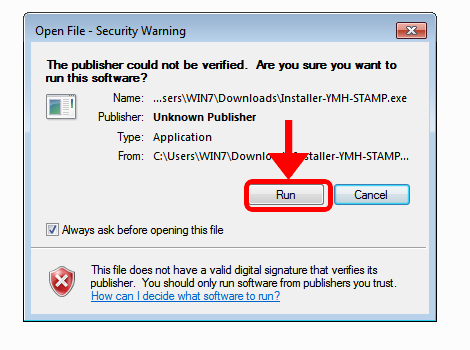
When you open the installer, Windows shows “The publisher could not be verified” because the software is not yet signed. Click “Run”.
Windows asks for permission to install (User Account Control). Click “Yes”.
After installation
Open YMH STAMP from the Start menu, enter the activation key received by email, and stamp your first case file.
A question during installation? Email us at [email protected]: we will help you.
Optional step, for advanced users only. If you are not familiar with PowerShell, you can skip it: the installation works perfectly without it.
Verify the file integrity
After downloading from ymhstamp.com, compare the file's SHA-256 fingerprint with the one published here. In PowerShell: Get-FileHash .\YmhStamp-Setup.exe. The two values must be identical.
0F7FB0EF30290D37BEFDE1914A55819496B204D8A45BEFABBA6B14FA4477B2BB